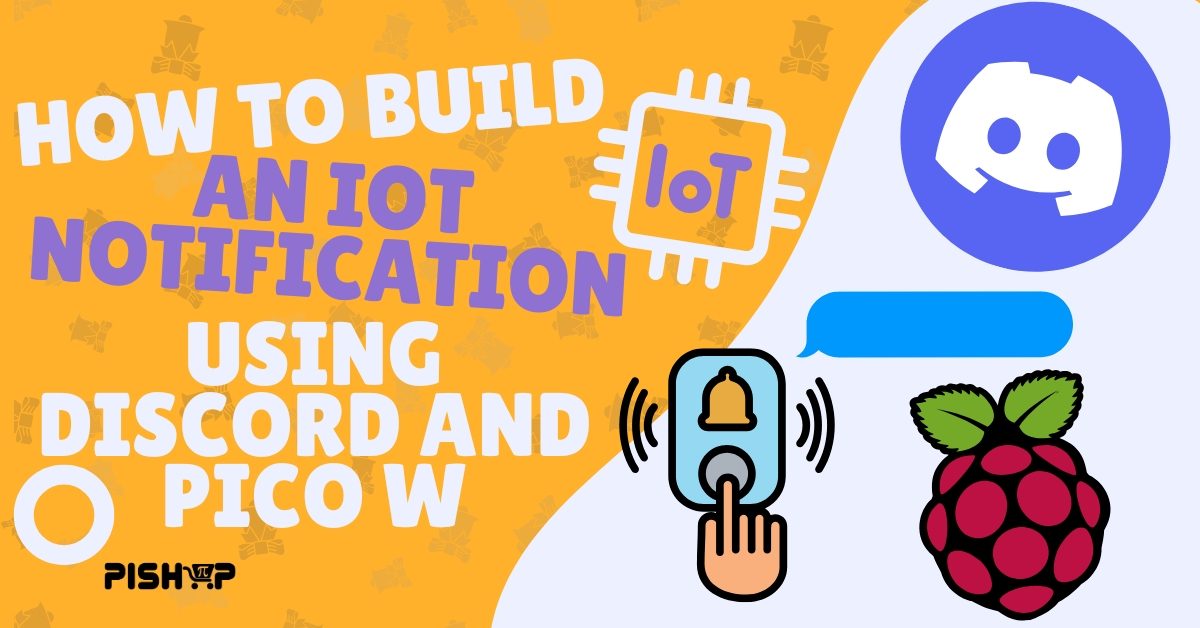
How to Build an IoT Notification Button Using a Dedicated Discord Bot
Beginner, Home Automation, PiShop, Platforms, Projects, Raspberry Pi Pico, Skills beginner, raspberry pi, raspberry pi pico w, Tech 0
This week we’re doing a small IoT project that could work as the beginnings of something larger if you decide to take it further however for now I’ll just be using this as a small joke in my personal life. Webhooks are pretty great but today I’ll be taking it a step further with a dedicated Discord Bot mixed with a … DIY Doorbell?
In this guide, we’ll connect a physical button to a Raspberry Pi Pico 2W and use MicroPython to create a custom Discord bot post an alert in our own server when the button is pressed.
What You'll Need
It’s a pretty straight forward project today but with it’s simplicity comes the opportunity to expand very easily with a buzzer, a case or upgrading to a Raspberry Pi Zero with a camera:
Step 1: Creating the Discord Bot
Before we even get into the code, we need to create the actual bot first and API token first.
- Go to the Discord Developer Portal and log in.
- Click New Application in the top right and give it a name, we named our Lab Bot, and then save.
- On the left menu, click Bot. Scroll down and click Reset Token to generate the secret key for your bot. Copy this token immediately because we’ll need it for the code.
- Scroll further down the page to Privileged Gateway Intents and enable Message Content Intent.
- Go to OAuth2 > URL Generator on the left menu. Under Scopes, select bot. Under Bot Permissions, select Send Messages.
- Copy the generated URL at the bottom, paste it into a new browser tab, and invite the bot to your discord server.
You’ll also need the Channel ID of where the bot will be posting so go to User Settings -> Advanced -> Turn on Developer Mode. Back in the server just right click the channel you’ll be using and click copy Channel ID.
Step 2: Wiring the Button
The most simple step to this tutorial is plugging the button in. Hook the button up to GP15 and a GND pin.
- Connect 1 pin on the button to GP15 (Pin 20)
- Connect the other pin to a GND pin such as pin 18 or 23
Step 3: The MicroPython Script
Instead of using some massive Discord library, we’ll be talking to Discords official HTTP API directly using native urequests POST packets.
Concerning microncontrollers, the u in urequests stand for micro, meaning a more stripped down network library built directly into the MicroPython’s firmware. A POST packet is essentially a digital envelope that data is packed into which and sent along with:
The URL: Where the packet is going (
https://discord.com/...).Headers: Proving to Discord that your bot has permission to be there (
Authorization: Bot XYZ).Payload: The actual text message you want to appear in the channel (
"content": "🚀 Alert...").
In this guide, we'll connect a physical button to a Raspberry Pi Pico 2W and use MicroPython to create a custom Discord bot post an alert in our own server when the button is pressed.
Step 4: Standalone Power-Up
Unplug the Pico W from your development PC and power it via any 5V USB power bank or mains adapter. The onboard LED will flash during network setup and turn solid once online. Give your physical button a tap, and watch your brand-new Discord Bot immediately pop up with a custom ping in your server!
If you enjoyed this tutorial then make sure to check out the rest of our blog, we’ve got plenty more content and tutorials waiting for eager hands! We also now post on social media so make sure to check those out as well!