How to set up Recalbox & Batocera on Raspberry Pi and Steam Deck
Beginner, PiShop, Platforms, Raspberry Pi, Resources, Skills, Tutorial batocera, beginner, getting started, raspberry pi, recalboc, Tech 0
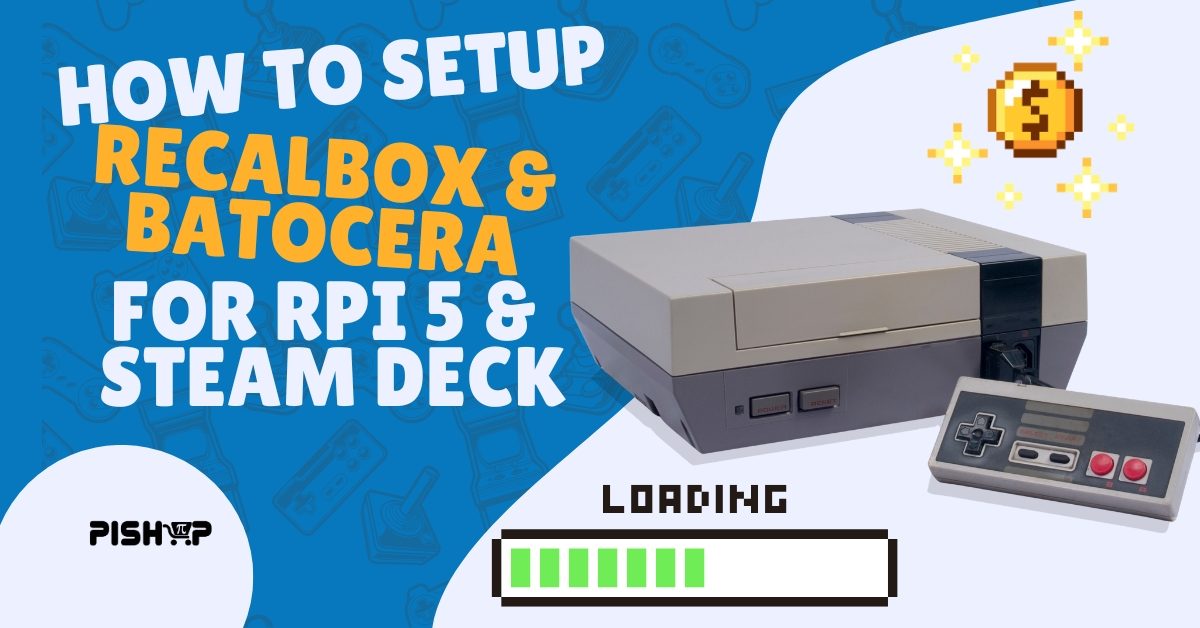
We’ve seen plenty of arcade/emulator tutorials on our blog and socials but We haven’t done a dedicated tutorial for one just yet, in todays article we’ll be covering how to setup both Recalbox and Batocera on a Raspberry Pi 5 as well as a Steam Deck for portable emulation as well as adding games to your systems over your local wifi.
Why did I choose 2 and why these 2 specifically? In my opinion while both are practically identical they have their pros and cons. Recalbox is ultra-stable, has a minimalist interface that ‘just works’ out of the box and I’ve found it easier to run on the Raspberry Pi for both dedicated machines and at exhibits. Go with Batocera if you love heavy theme customization, custom bezels, and having the absolute newest emulator updates. In my opinion Batocera doesn’t have any issues out of the box with control setup and theme customization on the Steam Deck.
What You'll Need
This project is pretty lightweight on the components, for this project you’ll need the following:
Or if you already have a Pi 5 or Steam Deck
- 64GB MicroSD Card
- This will be the main storage of the operating system and games, if you have access to a MicroSD Card with a bigger storage size and want to add more games then I’d recommend using that.
- MicroSD Card Reader/Writer
Raspberry Pi Setup
Both Operating systems are going to have a slightly different setup with the only differences being some options and downloads. All sets of instructions will be using the Official Raspberry Pi Imager which works for both Raspberry Pi as well as normal imaging software.
Recalbox
- Plug your MicroSD Card into the Reader and that into your PC.
- Open the Raspberry Pi Imager, Choose Raspberry Pi 5.
- When in the Operating System menu choose “Emulation and Game OS” and then Recalbox.
- From here you can complete the required information such as username, passwords, etc.
- Recalbox will require you to enable wi-fi and connect to your local wi-fi manually regardless so I usually skip filling those options in.
Batocera
- Download the Batocera Image for Raspberry Pi 5 from their website here.
- Plug your MicroSD Card into the Reader and that into your PC.
- Open the Raspberry Pi Imager, Choose Raspberry Pi 5.
- When in the Operating System menu choose “Use Custom” and then choose the Batocera file you downloaded.
Steam Deck Setup
The Steam Deck is a powerful hand held computer that can do more than run SteamOS by using an SD card and flashing it with an operating your able to switch between the 2 without getting rid of the SteamOS partition, essentially turning it into a 2-in-1 gaming station. Follow these instructions to set it up:
- Download either the Batocera Image or the Recalbox Image
- Plug your MicroSD Card into the Reader and that into your PC.
- Open the Raspberry Pi Imager, Choose “No Filtering”.
- When in the Operating System menu choose “Use Custom” and then choose the preferred image file you downloaded.
- When it’s finished flashing the MicroSD card, plug it out of your pc and plug it into the bottom of your Steam Deck.
- Now hold the Volume Down button and quick press the power button. It should boot up into a menu instead of the normal SteamOS.
- Choose “EFI SD/MMC Card” to start the operating system. The inital boot for both of these operating system will take a minute or 2 for setup.
- If you need to get back into the SteamOS just turn the device off, press the 2 previously mentioned buttons and in the boot manager menu choose SteamOS.
How To Add Games To Both Systems
It’s fantastic that we have these systems setup now but it’s kinda boring without any games. Both systems use a Samba network share to let you drop ROMs from your primary PC directly and wirelessly.
- To start, make sure that your Pi or Steam Deck are connected to the local Wi-Fi.
- In either one of the systems, press start and head to network settings to find your IP Address.
- Write it down and head to your primary PC.
- Open the file explorer and in the path bar type \\”your Ip address”, open the folder that shows up, navigate to the “roms” folder then drag and drop your legally acquired game roms into the appropriate console file.
- Restart the system and your games should be ready to play and enjoy!
Conclusion
Whether you go with the rock-solid simplicity of Recalbox on a Raspberry Pi or the fully customisable Batocera experience on your Steam Deck, you’re only a few steps away from your own retro gaming setup. Both systems punch well above their weight, and once you’ve loaded your first batch of ROMs you’ll wonder why you didn’t do this sooner.
The best part? You don’t need to hunt around for compatible hardware. You can grab everything you need, Raspberry Pi 4 and 5 boards, high-quality A2 MicroSD cards, and reliable power supplies, directly from the PiShop Africa store. All the gear, none of the guesswork.
If you found this guide helpful, check out our other Raspberry Pi project tutorials, and feel free to drop any questions in the comments. Happy gaming!