Upgrading Our RFID-Powered Game Launcher | Raspberry Pi Pico and RC522
Beginner, Getting Started, Home Automation, Other, PiShop, Platforms, Projects, Raspberry Pi Pico, Resources, Skills, Tutorial raspberry pi, raspberry pi pico, rc522, rfid, Tech 0
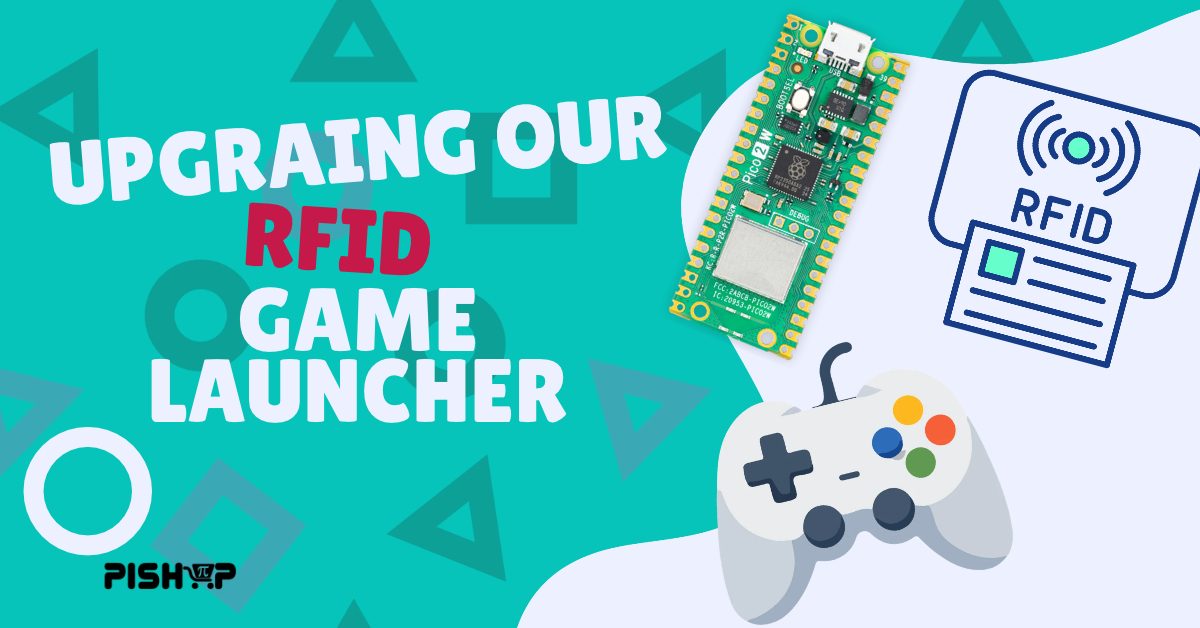
Sliding a cartridge into the slot of our RFID launcher starts a game by itself, pulling a cartridge out pauses a song that’s playing. It doesn’t look exactly like a cassette or an old cartridge but it’s the thought that counts right? Inside each cartridge is a tiny NFC sticker that get’s scanned by an RFID sensor connected to a Raspberry Pi Pico.
Built to show how having constraints in hardware can push the limits of imagination! This build extends our earlier project of an RFID game launcher that used a USB RFID reader to launch games, some issues that system had was it would only scan the tag once and keep scanning for new ones which wasn’t really the desired effect. We’ve taken it a step further this time around which you’ll see further into the article!
How It Works
The Pico only reads the cartridges. A small python program and Json file decides what each cartridge does, here’s the process:
- The RC522 reads an NFC sticker inside the cartridge
- The Pico reads the unique ID and sends it to the PC
- The launcher program looks it up on the json list of cartridges
- It starts the game via steam or a launch link or an executable and music is played via VLC
- The Frontend screen shows a shelf of cartridges and the shows the choice made.
New cartridges are setup via a form pop-up if the cartridge ID isn’t recognized.
What You'll Need
- 1 x Raspberry Pi Pico (Pico W and Pico 2’s work fine)
- 1 x RC522 RFID Reader Module (13.56MHz)
- NFC NTAG213 Stickers 13.56MHz
- Jumper Cables( I used 10cm cables)
- 1 x Micro-USB cable
- 1 x Windows PC (This is what I’ve tested it with)
- Cartrdge Shells
On the software side you need micropython installed on the pico. I used Thonny and you’ll also need the pyserial package installed on your PC.
Step 1:Wiring The Pico
The RC522 talks to the Pico over SPI as follows:
| RC522 | Pico | Physical |
|---|---|---|
| 3.3V | 3V3(OUT) | 36 |
| GND | GND | 38 |
| SDA | GP17 | 22 |
| SCK | GP18 | 24 |
| MOSI | GP19 | 25 |
| MISO | GP16 | 21 |
| RST | GP20 | 26 |
Leave the IRQ pin unconnected. Physical pin 1 is the top-left pin with the USB port facing up.
Power the reader from 3.3V only, never 5V. Pin 36 sits right next to pin 37 (3V3_EN) and pin 39 (5V from USB), so double-check that wire.
Step 2: Pico Setup
The Pico runs MicroPython, so there’s nothing to compile. You just copy two files onto it.
- Hold the BOOTSEL button while plugging the Pico in. It appears as a USB drive.
- Download the MicroPython .uf2 file for your board from micropython.org and drag it onto that drive.
- Open Thonny and select MicroPython (Raspberry Pi Pico) in the bottom-right corner.
- Save the reader driver, mfrc522.py, and the main program, main.py, onto the Pico.
- Press Ctrl+D to restart, then hold a sticker on the reader.
The Shell window should show a line like TAG:1DC1466C0B1080, then REMOVED: with the same ID when you take it away. Because the program is named main.py, it starts by itself whenever the Pico gets power.
A small Python based RFID game launcher that runs on Windows and a Raspberry Pi Pico with an RC522 Module
Step 3: Running The Launcher on PC
The launcher is one Python script, rfid_launcher.py. It listens to the Pico, starts games and music, and serves two web pages from the same PC.
- Install VLC and Python, then install pyserial by running py -m pip install pyserial in Command Prompt.
- Put the launcher and its frontend folder together in one folder.
- Run py rfid_launcher.py. It finds the Pico by itself and reconnects if the cable gets bumped.
- Open localhost:8765/manage in a browser and scan each sticker. For every new one, a form asks what it should do.
- Open localhost:8765 on a second screen and press F11. That’s the visitor screen.
The setup form takes a Steam store link and fills in the game’s app ID and name for you. Other games can start from their program file or a launch link, and music cartridges point at a folder. You can also give each cartridge a cover picture and a colour.
The visitor screen is the fun part. It shows a shelf of cartridges in a retro, isometric style. Insert one and the shelf slides to it and lifts it out, with a loading bar for games or moving equaliser bars for music. When nobody’s playing, it slowly browses the shelf on its own to catch people’s attention.
What We Learned
- A reader that types can get in the way. In our earlier launcher, the USB reader types the tag’s ID as keystrokes, so the script has to run as Administrator to catch them. Scanning while a game is open also types those numbers into the game. Having the Pico send IDs over a serial connection avoids both, and lets it report when a tag is removed.
- Pick the board you know. We first built the reader on an ESP32-S3, but the Arduino setup kept fighting us and the board kept disconnecting. We switched to a Pico running MicroPython, which we already knew, and the connection problems went away. A familiar board beats a clever one when you’re on a deadline.
- Turn the reader’s gain down, not up. Our RC522 at first read nothing at all, even with a sticker right on it. A diagnostic script showed it was hearing garbled replies. At the lowest receiver gain it read 20 out of 20 times; at every higher setting, 0. Some clone RC522 boards overload when the tag is close, so test the gain with your own reader.
- Keep the rest of the sticker pack away. If the other stickers are near the reader, they all answer at once and scramble each other. Test with one sticker on its own.
- Replace config files with a form. At first every cartridge was set up by editing a JSON file, and a single missing comma or backslash stopped it from loading. The setup page now checks everything before saving, which makes adding cartridges quick and mistake-free.
Conclusion
The cartridge launcher is on the PiShop stand at rAge, 27 to 29 November 2026. Come pick a cartridge, drop it in the slot and play. Our team can show you the wiring and the code.
Everything in this build is in stock at PiShop: the Pico, the RC522 reader and the NTAG213 stickers. The same parts work for door access, attendance tracking, or a music box for kids that plays an album when a card is tapped.
Have you built something like this or worked with the RC522 before? RFID has many other uses so we’d love to hear about how you used it!