We Built a Game Controller on a Breadboard (and Steam Was Not Impressed)
3D Printing, Intermediate, PiShop, Platforms, Projects, Raspberry Pi Pico, Resources, Robotics, Skills, Tutorial breadboard, controller, intermediate, raspberry pi, raspberry pi pico, sensors, Tech 0
With rising costs in all forms of hardware due to some current shortages we’ve decided to lean into our maker habits and add some challenges to or daily lives with a custom functional gaming controller! Part electronics, part firmware, and part figuring out how modern PCs expect controllers to behave.
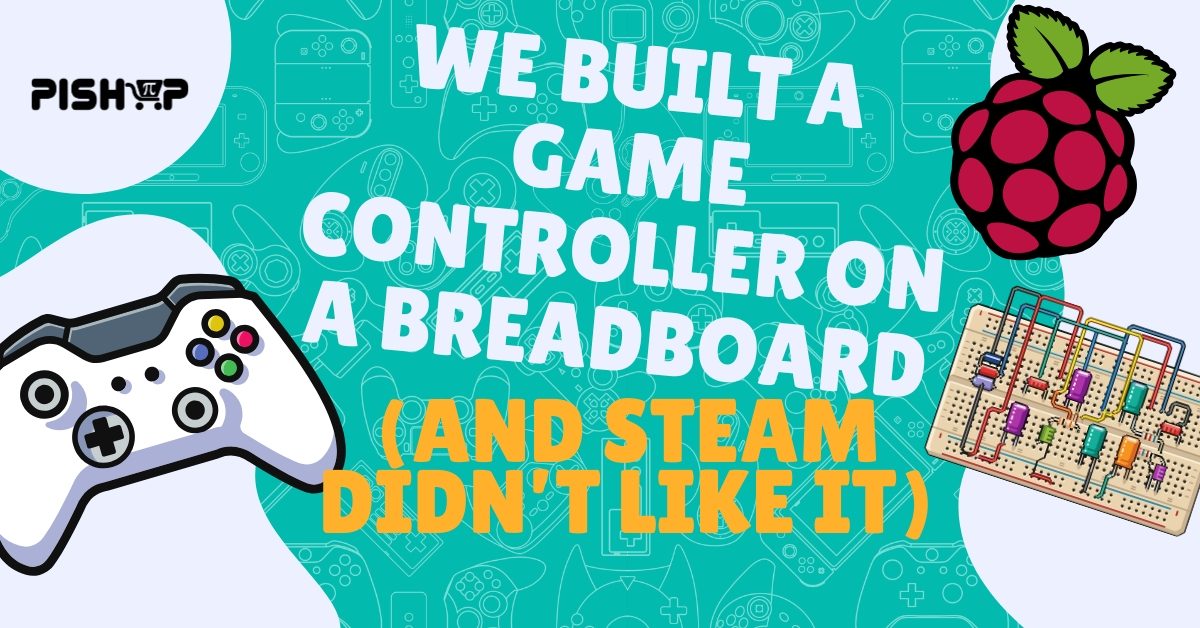
In this project, we built a fully functional custom game controller prototype on a breadboard using a Raspberry Pi Pico, two analogue joysticks, 10+ buttons, and an MCP3008 analogue-to-digital converter for the joysticks. The controller worked immediately in browser-based gamepad testers, but initially behaved inconsistently in PC games like Hollow Knight Silksong.
This article documents the original build, the working software approach, and the important correction that made the controller behave properly across Windows and Steam.
The Hardware Prototype
The controller was designed as a proof-of-concept rather than a finished product, using easily swappable parts and breadboard wiring.
Core Components:
2 × analogue joystick modules (4 axes total)
10 x micro-tactile buttons for Face buttons, bumpers, triggers, start/select
Breadboard + jumper wires
Why Use the MCP3008?
Each joystick needs two analogue inputs. While the Pico does have ADC pins, using the MCP3008 gives:
More analogue channels
Clean SPI-based reads
Easy scalability for future inputs
Buttons are wired active-low, using the Pico’s internal pull-up resistors to keep the wiring simple.
USB HID: Making the Pico Look Like a Gamepad
Our goal was to make the pico act like a standard USB game controller with no drivers, no special software, purely plug-and-play capabilities.
The Key Correction:
While our early testing used MicroPython-style logic, we ended up switching to CircuitPython with a custom USB HID device definition.
To get the controller working reliably:
CircuitPython must be installed on the Pico
A custom HID report descriptor must be defined
This combination ensures the Pico presents itself as a clean, standards-compliant generic Desktop to Gamepad device.
Why CircuitPython Was the Missing Piece
CircuitPython provides:
Stable USB HID support on the RP2040
Early USB device configuration via
boot.pyFull control over HID report descriptors
Predictable behavior across browsers, Windows, and games
Instead of relying on a generic gamepad class, we explicitly describe:
How many buttons the controller has
How many axes it exposes
The exact size and format of each USB report
This clarity is what made the controller “just work”.
How the Firmware is Structured
The firmware is split into two files, each with a specific role.
1. USB Definition (boot-time)
Before the main program runs, the Pico defines itself as:
A Gamepad (Usage Page 0x01, Usage 0x05)
16 digital buttons (2 bytes)
4 analogue axes (X, Y, Z, Rz)
A 6-byte input report with a fixed report ID
This step is critical — it tells the operating system exactly what kind of controller this is.
					import usb_hid

# If .GAMEPAD doesn't exist, we manually define the report descriptor
# for a standard Gamepad (Usage Page 0x01, Usage 0x05)
gamepad_descriptor = bytes((
    0x05, 0x01,        # Usage Page (Generic Desktop Controls)
    0x09, 0x05,        # Usage (Gamepad)
    0xa1, 0x01,        # Collection (Application)
    0x85, 0x04,        #   Report ID (4)
    0x05, 0x09,        #   Usage Page (Button)
    0x19, 0x01,        #   Usage Minimum (Button 1)
    0x29, 0x10,        #   Usage Maximum (Button 16)
    0x15, 0x00,        #   Logical Minimum (0)
    0x25, 0x01,        #   Logical Maximum (1)
    0x75, 0x01,        #   Report Size (1)
    0x95, 0x10,        #   Report Count (16)
    0x81, 0x02,        #   Input (Data,Var,Abs,No Wrap,Linear,Preferred State,No Null Position)
    0x05, 0x01,        #   Usage Page (Generic Desktop Controls)
    0x09, 0x30,        #   Usage (X)
    0x09, 0x31,        #   Usage (Y)
    0x09, 0x32,        #   Usage (Z)
    0x09, 0x35,        #   Usage (Rz)
    0x15, 0x81,        #   Logical Minimum (-127)
    0x25, 0x7f,        #   Logical Maximum (127)
    0x75, 0x08,        #   Report Size (8)
    0x95, 0x04,        #   Report Count (4)
    0x81, 0x02,        #   Input (Data,Var,Abs,No Wrap,Linear,Preferred State,No Null Position)
    0xc0               # End Collection
))

my_gamepad = usb_hid.Device(
    report_descriptor=gamepad_descriptor,
    usage_page=0x01,           # Generic Desktop
    usage=0x05,                # Gamepad
    report_ids=(4,),           # Descriptor ID
    in_report_lengths=(6,),    # 2 bytes buttons + 4 bytes axes
    out_report_lengths=(0,),   # No data from PC
)

usb_hid.enable((my_gamepad,))
2. Runtime Logic
The main loop then:
Reads joystick positions from the MCP3008 over SPI
Scales 10-bit analogue values into signed HID ranges (-127 to 127)
Polls all buttons (active-low)
Packs everything into a 6-byte HID report
Sends updates at ~100Hz for smooth input
					import board
import busio
import digitalio
import time
import usb_hid

# Hardware Setup
spi = busio.SPI(clock=board.GP18, MOSI=board.GP19, MISO=board.GP16)
cs = digitalio.DigitalInOut(board.GP17)
cs.direction = digitalio.Direction.OUTPUT
cs.value = True

def setup_btn(pin):
    btn = digitalio.DigitalInOut(pin)
    btn.direction = digitalio.Direction.INPUT
    btn.pull = digitalio.Pull.UP
    return btn

# Face Buttons
btn_a = setup_btn(board.GP6)
btn_b = setup_btn(board.GP7)
btn_x = setup_btn(board.GP8)
btn_y = setup_btn(board.GP9)

# Bumpers and Triggers
btn_rb = setup_btn(board.GP10)
btn_rt = setup_btn(board.GP11)
btn_lt = setup_btn(board.GP12)
btn_lb = setup_btn(board.GP13)

# Joystick Clicks
btn_l_stick = setup_btn(board.GP14)
btn_r_stick = setup_btn(board.GP15)

# System Buttons
btn_select = setup_btn(board.GP4)
btn_start = setup_btn(board.GP5)

def read_mcp3008(channel):
    buf = bytearray([0x01, (8 + channel) << 4, 0x00])
    while not spi.try_lock(): pass
    try:
        cs.value = False
        spi.write_readinto(buf, buf)
        cs.value = True
    finally:
        spi.unlock()
    return ((buf[1] & 0x03) << 8) | buf[2]

def scale(val):
    # Map 0-1023 to -127 to 127 for the HID report
    s = int((val / 1023) * 254 - 127)
    return s & 0xFF

# Find the Gamepad device
gamepad_dev = None
for device in usb_hid.devices:
    if device.usage == 0x05:
        gamepad_dev = device
        break

while True:
    if gamepad_dev:
        # Read Axes
        x1, y1 = scale(read_mcp3008(0)), scale(read_mcp3008(1))
        x2, y2 = scale(read_mcp3008(3)), scale(read_mcp3008(4))

        # Byte 0: Face Buttons, Bumpers, and the fixed SELECT/START
        b_low = 0
        if not btn_a.value:      b_low |= 0x01 # Button 1
        if not btn_b.value:      b_low |= 0x02 # Button 2
        if not btn_x.value:      b_low |= 0x04 # Button 3
        if not btn_y.value:      b_low |= 0x08 # Button 4
        if not btn_lb.value:     b_low |= 0x10 # Button 5
        if not btn_rb.value:     b_low |= 0x20 # Button 6

        # SWAP: Use LT/RT pins for the Select/Start BITS (7 and 8)
        if not btn_lt.value:     b_low |= 0x40 # Button 7 (SELECT)
        if not btn_rt.value:     b_low |= 0x80 # Button 8 (START)

        # Byte 1: Triggers and Stick Clicks
        b_high = 0
        # SWAP: Use SELECT/START pins for the LT/RT BITS (9 and 10)
        if not btn_select.value: b_high |= 0x01 # Button 9 (LT)
        if not btn_start.value:  b_high |= 0x02 # Button 10 (RT)

        if not btn_l_stick.value: b_high |= 0x04 # Button 11
        if not btn_r_stick.value: b_high |= 0x08 # Button 12

        # 6-byte HID Report: [ButtonsLow, ButtonsHigh, X1, Y1, X2, Y2]
        report = bytearray([b_low, b_high, x1, y1, x2, y2])

        try:
            gamepad_dev.send_report(report)
        except:
            pass

    time.sleep(0.01)
It Works Online, But Games Don't See It!
This part of the project really stumped us, and as we found out, is a common issue found in these DIY controllers.
Our Controller:
A. Worked perfectly in browser gamepad testers
B. Appeared correctly in the OS controller list
But didn’t respond to any games we booted up. We found our that the Pico presents itself as a DirectInput controller! A lot of modern games, especially on PC, are built around XInput (Xbox controller) controller standards.
The Solution
Thankfully, Steam includes a pretty powerful translation layer that helps to convert DirectInput devices into XInput-compatible controllers. All you need to set this up is:
- Open Steam
- Go to Settings -> Controllers
- Enable Steam Input for Generic Controllers
- Plug in your Pico controller
- Choose Define Layout
- Finally Map the buttons and joysticks
After this, Steam exposes the controller to games as a virtual Xbox-style controllers.
What This Project Demonstrates
This build highlighted several important lessons for us as makers:
USB HID devices live or die by their descriptors
CircuitPython is extremely well-suited for USB projects on RP2040
Steam’s controller layer is essential for DIY hardware as gamers
Breadboard prototypes can behave like real consumer devices surprisingly well
Our Final Thoughts And Where This Is Heading
This controller wasn’t “broken” when it failed in games, it just wasn’t presenting itself clearly enough to the system.
By switching to CircuitPython, installing the Adafruit HID library, and defining a proper gamepad descriptor, the Raspberry Pi Pico becomes a rock-solid USB controller that works across browsers, Windows, and Steam-powered games.
For anyone interested in building custom input devices, this project proves that you don’t need proprietary hardware or drivers just a solid understanding of USB HID and the right tools.
You can look forward to an upcoming project where we translate our breadboard over to a PCB and create our own outer shell for the controller! Can’t wait for a controller that perfectly fits in my hands!
If you enjoyed this read, have a look at the rest of our blog or share this with a maker in your family or friend groups! Have you ever created your own cutom controller before? If you have, please share it with us, we’d love to see it!
Our inspiration to create our own controller!